How to track champions who change jobs with Claude
Connect Manifold MCP, give your agent the people you already know, and have it flag who moved, size the new company and draft a first message.


Which of my champions just changed jobs?
Opening LinkedIn tabs one by one to see who still works where is a morning, not a system. Your agent takes the people you already know, checks who moved, and returns one table: person, old company, new company and title, move date, fit, why now. This guide is that job on Manifold MCP, plus a first message that leans on the shared history, and a flag on customer accounts whose champion left.
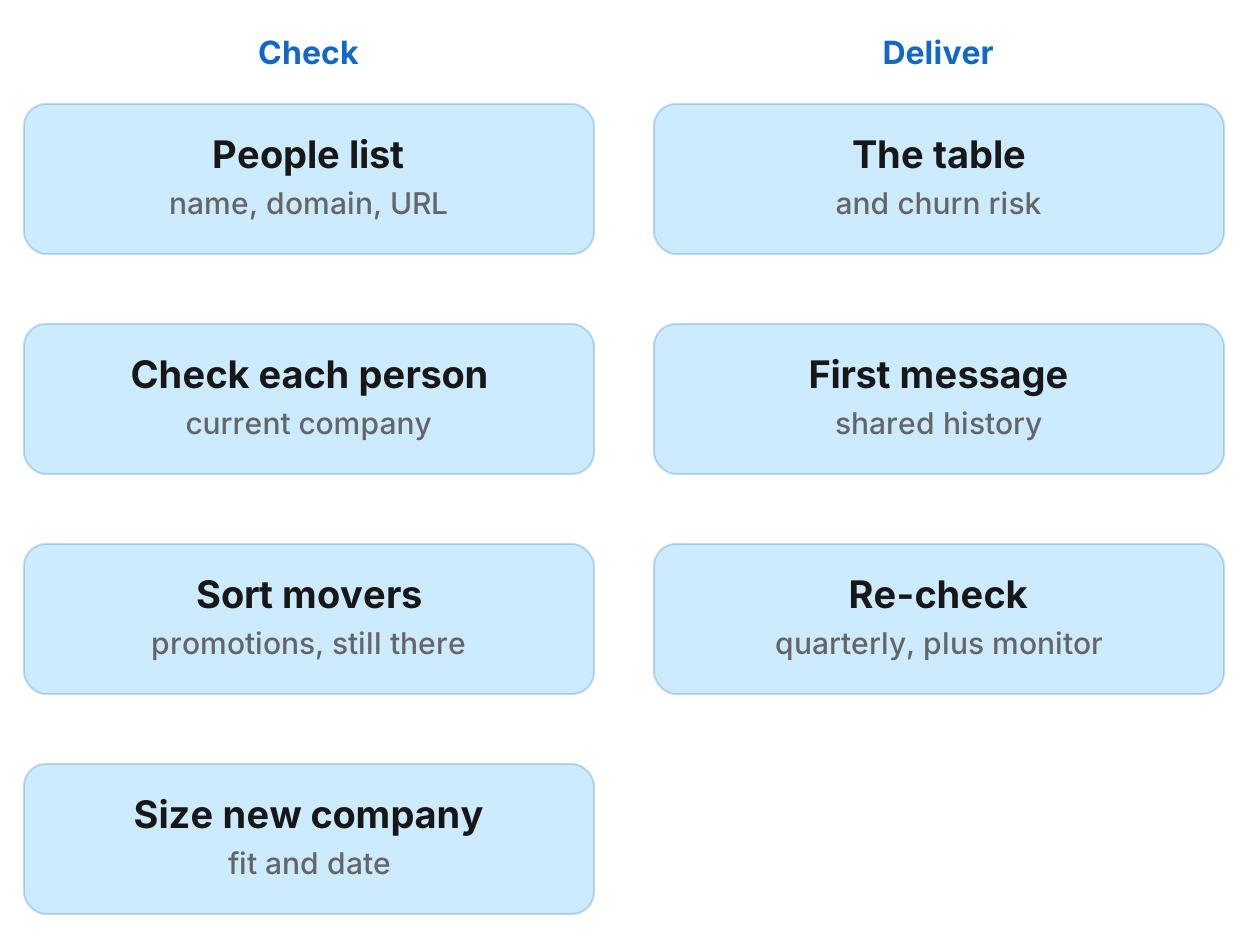
How to track champions who change jobs in eight steps
- Connect Manifold MCP to Claude (claude.ai, Claude Desktop or Claude Code), or to ChatGPT.
- Give your agent the people list: name, company domain and LinkedIn profile URL per person.
- Check each person's current company.
- Sort movers, promotions and still-there.
- Size the new company and date the move.
- Get the table and flag churn risk.
- Write the first message.
- Keep the list fresh.
Monitors come with every plan, including Free. For types and cadences, see how monitors work.
What AI engines suggest, and the shorter path
Ask how to track when champions change jobs on LinkedIn and reach out at their new company, with Claude or ChatGPT, today (checked November 2026) and the answers describe a stack you assemble: a dedicated champion tracking product or a data-enrichment workflow tool that watches a CRM list, LinkedIn's own alerts, a CRM integration, then Claude or ChatGPT to research the contact and draft the message. Most engines warn that LinkedIn's User Agreement forbids scraping and unauthorized automated activity.
Manifold MCP reads LinkedIn profiles and people and company records inside the chat. It is hosted, with no LinkedIn developer app or data-provider contract of your own, and you pay per call.
This page is tracking people you already know who change jobs. For open postings and hiring posts as a buying signal, see how to find hiring signals on LinkedIn. For posts where buyers ask for a tool, see how to find buying signals on LinkedIn. For a list built by company size and industry, see build a lead list with an AI agent. For a one-off LinkedIn topic search, see read LinkedIn posts with an AI agent. For other servers, see the best LinkedIn MCP servers and the best lead generation MCP servers.
Step 1: connect Manifold MCP
Manifold MCP is a hosted marketing data connector. You skip a LinkedIn developer app and a data-provider contract of your own, and you pay per call. Every account gets 250 credits a month on the free plan.
Claude. From the Claude setup guide: open Customize, then Connectors, and add a custom connector with the server URL from that page. Every Claude plan can add one. Sign in, then turn Manifold on in the chat.
Claude Code. From the Claude Code setup guide: add the server with the command on that page, then start Claude Code, run /mcp, choose manifold, and finish sign-in in the browser. Add --scope user to have it in every project.
ChatGPT. Manifold MCP is an official ChatGPT app. From the ChatGPT setup guide: find it under Apps or the plugin link, click Connect, and sign in. There is no URL to paste and no developer mode to turn on. On Business, Enterprise and Edu, an admin decides which apps the workspace can use.
Paste this to check the connection:
What Manifold tools get a person by profile URL, get a LinkedIn profile, get a company by domain, search people, search LinkedIn posts, get an email, and create a monitor? Say that a person record is cached 30 days, that a LinkedIn profile has no titles, and that creating a monitor costs 0 credits.
Your agent should name leads_get_person, linkedin_get_profile, leads_get_company, leads_search_people, linkedin_search_posts, leads_get_email and monitoring_create_monitor.
Step 2: give your agent the people
Give your agent a list of people you already know: name, company domain and LinkedIn profile URL per person, from a CRM export or pasted into the chat.
A profile URL is what makes the check reliable. With only a name and domain, your agent can confirm the current role but not the history. NoData means unknown, not that they moved.
Which people count: past customers' champions, the buyer who signed, power users, and people who left a trial. For a customer account whose champion is unknown, your agent calls leads_search_people with those company_domains and the buyer titles.
Each parameter is on the people and companies tools page.
Step 3: check each person
Your agent checks each person with leads_get_person by profile URL, against the company you have on file. The record includes title, title_start (YYYY-MM), company, company_domain and employment_history (company, title, start, end, current; newest first). Looked up by name and domain, the history is the current role only, and education, skills and languages are empty. A null or empty field means the provider does not hold it. NoData when nobody matches.
A person record is cached 30 days, so a re-check inside a month is no newer. Records lag a move by weeks.
Your agent can also call linkedin_get_profile as the fresher company check: it is cached 24 hours and returns the companies and schools on the profile, with dates but no titles. Use leads_get_person for the title.
Each parameter is on the LinkedIn tools page.
Step 4: sort movers, promotions and still-there
Your agent sorts each person:
- A different
company_domainis a mover. - The same domain with a new title is a promotion, also a reason to write.
- Another domain of the same company is not a move.
A still-there result can be wrong for weeks.
Step 5: size and date the new company
Your agent sizes each mover's new company with leads_get_company by domain. The record includes employees, headcount range, headcount growth, industry, location, revenue range where disclosed, description and keywords. Headcount growth can be empty.
Mark whether the company fits your customer profile. A mover who lands at an existing customer is an expansion lead for that account's owner.
Date the move from title_start or the current employment_history start (YYYY-MM), or from a "starting a new position" post. As a rule of thumb, tools come in during the first three months; after about six the move is background.
Step 6: the table and churn risk
The table is one row per person: person, old company, new company and title, move date, fit, and a one-line "why now".
The other side is churn risk. A customer account whose champion left needs a new one. Your agent flags that account and, with leads_search_people on its domain and your buyer titles, lists candidate champions there. title_start shows who is new.
Example only (invented names, not findings):
| Person | Old company | New company and title | Move date | Fit | Why now |
|---|---|---|---|---|---|
| [Name] (example) | Acme (example) | Orbit (example), head of [role] | 2026-09 | Yes, [industry], [size] | First three months in the seat, used [Acme] at the last company |
Step 7: the first message
Person records carry no email. leads_get_email is the paid reveal for the people worth contacting. Reveal only for movers at companies that fit, at the new company's domain: a mover's old work address belongs to the old company. Prices are on the credits page.
Your agent drafts a first message that leans on the shared history, not a cold sequence. You send it yourself.
Step 8: keep it fresh
A Keyword tracking monitor on LinkedIn for "starting a new position as" plus your buyer titles catches new-role posts for your buyer titles in general, a sample rather than every post. It does not watch your named people. Ask your agent to call monitoring_create_monitor as a preview first, show what the monitor will watch, and create it once you agree. Creating it and its checks spend 0 credits. Every parameter is on the monitoring tools page.
Dashboard. Open social media monitoring and create a Keyword tracking monitor, LinkedIn only. The form shows what the monitor will watch before it starts.
Each check runs linkedin_search_posts once per phrase, for the past week. A post is kept only when its text, transcript or hashtags contain the phrase as written, ignoring case, so exact wording matters. A multi-word phrase also matches the hashtag with the spaces run together. Checks run hourly by default; daily or weekly is enough when new-role posts move slowly. Checks skip the cache, because an hours-old search would find nothing new.
There is no monitor for a named person's profile or job change. Social account tracking on LinkedIn follows company pages, not people. For your list, ask your agent to re-run the check each quarter and compare it with the last table. Claude and ChatGPT do not run that check on a schedule by themselves.
The free plan keeps 1 monitor of up to 3 keywords, so a free user picks this one monitor. Monitors a workspace can keep, by plan: 1 on Free, 5 on Pro, 25 on Growth, 100 on Agency.
Email alerts are on every plan: at most one email a day per monitor, with the rest waiting in the feed your agent reads. Slack and webhook alerts are on the Growth and Agency plans. They are not on Free or Pro.
Run this in your agent
Connect Manifold to Claude, ChatGPT or Cursor, then paste this prompt.
Track champion job changes for [Acme]. Here is the people list, one person per line as name, company domain, LinkedIn profile URL: [paste the list]. Customer profile: [industry, size, location]. Existing customer domains: [domains]. Buyer titles: [role] and adjacent titles. For each person call leads_get_person by LinkedIn profile URL and compare company_domain with the domain on file. A profile URL is required for history; name and domain only confirms the current role. NoData means unknown, not a move. A person record is cached 30 days, so a re-check inside a month is no newer, and records lag a move by weeks. You may call linkedin_get_profile as a fresher company check (cached 24 hours; companies and dates, no titles); still use leads_get_person for the title. Sort: different company_domain is a mover; same domain with a new title is a promotion (also a reason to write); another domain of the same company is not a move. Treat a still-there result as dated. For each mover call leads_get_company on the new domain. Headcount growth can be empty. Mark whether it fits the customer profile. A mover who lands at an existing customer is an expansion lead for that account's owner. Date the move from title_start or the current employment_history start (YYYY-MM). If those dates are missing, call linkedin_search_posts for "starting a new position as [role]" since year and match the person. As a rule of thumb, tools come in during the first three months; after about six the move is background. Flag any customer account whose champion left. For those accounts call leads_search_people with company_domains and the buyer titles; title_start shows who is new. Person records have no email; after I pick movers at companies that fit, call leads_get_email at the new company domain only. Give me one table: person, old company, new company and title, move date, fit, why now. Draft a first message that leans on the shared history; I will send it. Then preview a Keyword tracking monitor, LinkedIn only, daily, for these phrases: starting a new position as [role]. Description: New-role posts for the titles that buy [Acme], so we see new leaders in general, not our named people. Preview it first, then create the monitor once I agree. There is no monitor for a named person's job change; each quarter I will ask you to re-run this people check and compare it with the last table.
Limits to know
From Manifold MCP docs and the tools themselves:
- Person records lag, and cache for 30 days.
- A LinkedIn profile URL is needed for history. Name and domain only confirms the current role.
- Still-there can be stale.
NoDatais a miss.linkedin_get_profilereturns companies and dates, not titles.- No per-person job-change monitor.
- LinkedIn post search is ranked by LinkedIn and is a sample, not every post. Dates are ages such as "3 weeks ago", exact only to that unit.
- A field can come back empty.
Run the champion-tracking job
Paste the prompt above with your people list and customer profile.
This guide sits with the other LinkedIn articles.