How to find buying signals on LinkedIn with Claude
Connect Manifold MCP, create a LinkedIn keyword monitor for buyer phrases, and have your agent sort new posts into hot, warm and drop.


How do I find buying signals on LinkedIn?
A Keyword tracking monitor on Manifold MCP, set to LinkedIn, searches LinkedIn posts for each buyer phrase on a schedule, keeps only posts it has not seen and that really contain the phrase, and your agent reads the new posts, sorts them by signal and suggests a first move. Refreshing LinkedIn search until someone asks for a tool like yours is a hobby, not a system.
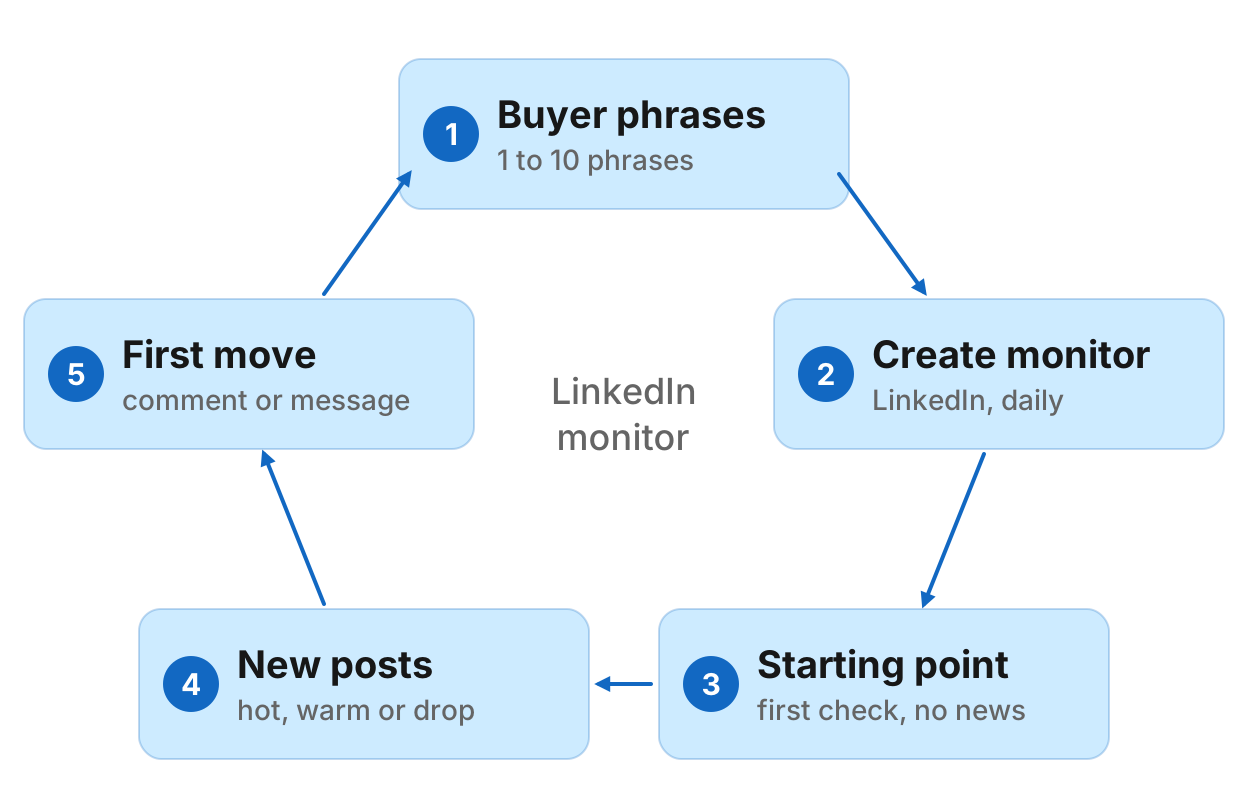
How to find buying signals on LinkedIn in five steps
- Connect Manifold MCP to Claude or ChatGPT.
- Write 1 to 10 buyer phrases.
- Create a Keyword tracking monitor with platform LinkedIn and a cadence. Preview it first.
- Let the first check set a starting point. It reports nothing.
- Ask your agent which new posts are buying signals.
Monitors come with every plan, including Free, and their checks cost no credits. Default cadence is hourly. Alerts start on. The free plan keeps 1 monitor of up to 3 keywords. Monitors a workspace can keep, by plan: 1 on Free, 5 on Pro, 25 on Growth, 100 on Agency. For types and cadences, see how monitors work. The LinkedIn tools your agent uses to dig in are on the LinkedIn tools page.
What AI engines suggest, and the shorter path
Ask how to find buying signals on LinkedIn in Claude or ChatGPT today and the answers say those chats do not watch LinkedIn on their own. They describe a pipeline you assemble: LinkedIn search with boolean phrases checked by hand every day, or a monitoring tool, a scheduler such as Make or Zapier, the model to classify intent, then an alert.
The Keyword tracking monitor on Manifold MCP does the searching, the schedule, the dedupe and the alerts. Your agent does the sorting and the reading. You do not build the pipeline.
This page is the scheduled buying-signal watch, not a server comparison. That roundup is the best LinkedIn MCP servers. For listening platforms compared, see the best social listening MCP servers.
Step 1: connect Manifold MCP
Manifold MCP is a hosted marketing data connector. You skip a LinkedIn developer app and a session cookie, with no API keys of your own, and you pay per call. Every account gets 250 credits a month on the free plan.
Claude. From the Claude setup guide:
- Open Settings, then Connectors.
- Choose Add custom connector. Name it Manifold and paste the server URL from the setup guide.
- Choose Connect, sign in to Manifold, and approve Claude.
- Start a chat, check that Manifold is on in the chat's tools menu, and ask a question.
A connector you add on the web is also there in the desktop app and on your phone.
ChatGPT. Manifold MCP is an official ChatGPT app. From the ChatGPT setup guide: open Apps, search for Manifold, click Connect, sign in and click Allow. Then type @Manifold or pick it from the + menu under More. There is no URL to paste and no developer mode to turn on. On Business, Enterprise and Edu, an admin decides which apps the workspace can use.
Paste this to check the connection:
What Manifold monitor tools do you have? Then tell me that creating a monitor is free, and how many monitors this workspace can keep.
Your agent should name monitoring_create_monitor, monitoring_get_monitors, monitoring_get_changes, monitoring_get_history, monitoring_update_monitor and monitoring_delete_monitor. Those tools are free. Monitor checks use no credits. The plan sets how many monitors you can keep. Credits still apply to the agent's own tool calls. Every parameter is on the monitoring tools page.
Step 2: write buyer phrases in four kinds
Write phrases in four kinds, in the buyer's words:
- Asking: "recommend a CRM", "looking for a tool".
- Switching: "alternative to [competitor]", "moving off [competitor]".
- Pain: the problem as the buyer says it, not as you market it.
- Hiring: "hiring a head of growth", for the role that buys you.
Test them first. Ask your agent to run linkedin_search_posts once per candidate phrase, newest first, for the past week. See the LinkedIn tools for what each row includes (author, text, likes, comments, transcript). Drop phrases that pull in vendors, consultants and recruiters marketing to the pain.
LinkedIn search is ranked by LinkedIn and is a sample of who is talking, not everyone. Browse LinkedIn articles if you still need a one-off search. This page stays on the scheduled watch.
Step 3: pick 1 to 10 phrases, written as people type them
A Keyword tracking monitor holds 1 to 10 phrases, each 2 to 60 characters. LinkedIn search ranks and stems, so the monitor keeps a post only when its text (or video transcript or hashtags) contains the phrase itself, ignoring case. A multi-word phrase also matches the hashtag with the spaces run together.
Write short phrases people actually type. "recommend a crm" will not match "can anyone recommend a good CRM", because the extra word sits in the middle. "looking for a crm" matches posts that contain those words in a row. Start with a few phrases you already tested. You can change the list later.
Step 4: create the monitor
Two paths, both real.
Dashboard. Open social media monitoring and create a Keyword tracking monitor, LinkedIn only. The form shows what the monitor will watch before it starts.
Your agent. Ask, for example:
Track LinkedIn every day for new posts with these phrases: recommend a crm, alternative to [competitor], crm for startups. Description: People asking for a CRM or leaving [competitor], so we answer while the post is fresh. Preview it first.
Your agent calls monitoring_create_monitor with preset mentions, platforms LinkedIn and the keywords, with preview first. It shows what the monitor will watch and creates it once you agree. Creating it and its checks cost 0 credits.
Give the monitor a description such as "People asking for a CRM or leaving [competitor], so we answer while the post is fresh". Your agent uses it later to decide what counts. If you leave it out, one is written from the fields.
Default cadence is hourly. Daily or weekly is enough when posts move slowly. The free plan keeps 1 monitor of up to 3 keywords, so a free user picks this one monitor. The preview shows the phrases and cadence before anything is made.
Step 5: the first check is a starting point
The first check runs within five minutes. It records what is there and reports nothing. That starting point stops last week's posts arriving as news.
From the second check on, each new post that contains a phrase is one new mention, with the author, the start of the post, likes and comments. Each check reads the past week of LinkedIn search, newest first, and drops posts already seen by post id, so overlapping windows do not double count. Checks skip the cache, because an hours-old search would find nothing new.
A spike is raised when a check finds at least 5 new mentions and at least three times the average of the earlier checks. It needs at least 3 earlier checks before it can compare.
LinkedIn shows post dates as ages ("2 weeks ago"), so a post's date is exact only to that unit.
Step 6: sort and qualify
After the second check, ask:
Which new LinkedIn posts from my monitor are buying signals?
Your agent reads monitoring_get_changes, sorts each post from its text into hot (asking for a recommendation, switching or complaining about a competitor), warm (describing the pain) and drop (general talk, or a vendor, consultant or recruiter marketing to the pain), keeps the sentence that shows the signal, then calls linkedin_get_profile on the hot and warm authors for company history and location. For a post it wants to read in full, linkedin_get_post.
Deliver a table: author, profile URL, company history and location, post URL, signal, the quote, likes and comments, and a suggested first move (a helpful public comment or a direct message that answers the post, not a pitch). Your agent can draft the comment in the chat; you post it yourself from your own account. Recent requests go first: a public request for a recommendation goes stale in days.
Use monitoring_update_monitor to pause, change phrases or cadence, or run a check now.
Step 7: hiring as a signal
A job posting for the role that buys you is a signal too. Your agent can look up open roles with leads_search_jobs (Google Jobs listings, including LinkedIn and other boards). See the people and companies tools. Keep this as a one-off look beside the monitor, not a second workflow.
Step 8: alerts
Keyword tracking alerts start on. Email alerts are on every plan: at most one email a day per monitor, with the rest waiting in the feed your agent reads. Each person in the workspace turns a monitor's alerts on or off for themselves.
Slack and webhook alerts are on the Growth and Agency plans. They are not on Free or Pro.
Who comments on a competitor's LinkedIn posts
A second pass, once a week if you have the monitor slot: who is already talking under a rival's posts.
Your agent:
- Collects the competitor's recent company posts with
linkedin_get_company_posts, and optionally its founders' recent posts vialinkedin_get_profile(recent_posts). - Sorts those posts by type first, because type predicts who comments: customer stories (the commenters are mostly the customer's own team, the strongest deal-flow signal), webinars and co-marketing (partners), product or opinion posts (where buyers asking real questions turn up), culture and hiring (the rival's staff; drop).
- Pulls the commenters with
linkedin_get_poston each kept post. Company feed rows carry no commenters.linkedin_get_commentsreturns the same people, so do not call both. - Removes duplicates, counts repeat names across posts, and classifies each person (rival's staff, customer, partner or agency, vendor, generic or automated comment, prospect) with
linkedin_get_profilewhere it is not obvious. - Delivers a table grouped by class, customers first, then prospects, then partners, with a suggested next move.
LinkedIn shows a logged-out reader up to 10 comments on a post and does not show who reacted, so this works from commenters, not reactions. The returned commenters fall short of the post's comment count, which also counts replies, so it is a sample. Your agent previews cost before a large pass; see credits.
A rival's customer is a long sales cycle, not a hot lead. Prospects asking questions under a rival's post are the fastest move, answered from your own account, and not with a pitch in the rival's thread. Repeat engagement needs a month or more of posts (20 to 30 posts per competitor). Over one week, repeat names are mostly staff.
To get each new competitor post as it lands, track the company page with a Social account tracking monitor: how to monitor competitor social media. Then your agent runs the commenter pass on the new posts each week. On the free plan the workspace keeps 1 monitor, so a free user picks either the keyword monitor or the account monitor. Monitors a workspace can keep, by plan: 1 on Free, 5 on Pro, 25 on Growth, 100 on Agency.
Run this in your agent
Connect Manifold to Claude, ChatGPT or Cursor, then paste this prompt.
Track LinkedIn every day for new posts with these phrases: recommend a crm, alternative to [competitor], crm for startups. Description: People asking for a CRM or leaving [competitor], so we answer while the post is fresh. Preview it first, then create the monitor once I agree. Each Monday, read that monitor's feed and give me a buying-signal table: author, profile URL, company history and location, post URL, signal, the quote, likes and comments, and a suggested first move. Optionally, collect [competitor]'s recent company posts, sort them by type, and give me a table of commenters grouped as customers, prospects and partners.
Limits to know
From Manifold MCP docs and the monitor itself:
- LinkedIn search is ranked by the platform and is not complete. The monitor finds new examples, not every post.
- A post is kept only when its text, transcript or hashtags contain a phrase as written, so wording matters.
- Dates are ages such as "2 weeks ago", exact only to that unit.
- Comments are capped at 10 per post for a logged-out reader, and reactions are not available.
- Manifold MCP does not score sentiment or intent itself. Your agent reads the posts and sorts them.
One-off search vs monitor
A one-off search finds posts on a topic, ranks them by likes and comments, and shows who has the reach. That run is read LinkedIn posts with an AI agent. Use it to test a phrase, then put the keepers on a monitor.
The same Keyword tracking monitor can add Reddit, Instagram, TikTok and YouTube later. Facebook groups cannot sit on that monitor; to find buyers asking questions there, see how to find customers in Facebook groups with Claude. For the TikTok version, see how to track TikTok hashtags and keywords with Claude. For brand mentions across platforms, see Google Alerts alternative.
Create your LinkedIn keyword monitor
Create a Keyword tracking monitor for LinkedIn. Creating it and its checks cost nothing. Open social media monitoring and start from the form, or connect Claude or ChatGPT and paste the prompt above.
The first check is a starting point. From the second check on, ask your agent which new posts are buying signals. Your agent reads the monitor's feed when you ask. Claude and ChatGPT do not run that prompt on their own schedule.