How to monitor website changes with Claude
Connect Claude to Manifold MCP, create a website monitor for the pages you care about, and have Claude read new links, prices and text.


How do I monitor website changes?
People searching "website change monitoring" still land on Visualping, Distill and listicles of page watchers. Those tools screenshot a page or email you when pixels move. They do not set up the watch inside Claude, or have the agent read what actually changed.
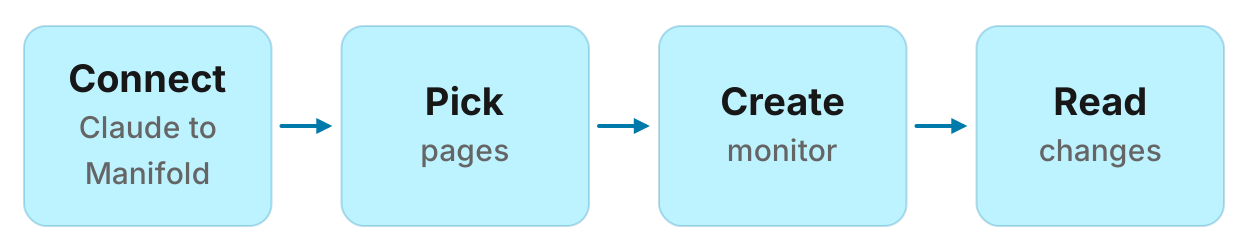
This is the setup. It uses competitor monitoring on Manifold MCP: a Website tracking monitor that checks 1 to 10 pages on a schedule, then Claude reads the feed. You connect Claude, pick the URLs, create one monitor, and ask what moved.
How to monitor website changes in four steps
- Connect Manifold MCP to Claude (claude.ai, Claude Desktop or Claude Code) with OAuth 2.1, or an API key.
- Pick the pages worth a watch: pricing, blog, careers, changelog, a product page. Choose
new_items(default) orany_change. - Create a Website tracking monitor. Preview the monthly cost first. Page checks cost 0 credits.
- Let the first check record a starting point, then ask Claude what changed after the second check.
Creating a monitor costs 0 credits. Each check calls seo_get_page, which costs 0 credits, at the same credit prices as a one-off call. Three pages checked every day is free. Hourly for those pages is still free. Monitors are on every plan, including Free with 250 credits a month. Monitors a workspace can keep, by plan: 1 on Free, 5 on Pro, 25 on Growth, 100 on Agency. For types, cadences and the estimate the form shows, see how monitors work.
What page-change tools do, and what this guide does
A Visualping-style tool watches a URL and tells you the page looks different. Visualping can screenshot the diff. Distill watches selections, feeds and a lot of page types, also with visual change. That is the right job if you need a picture: a hero image swapped, a button that moved, a banner that A/B tested overnight.
This guide is a different job. Manifold's website monitor compares links, prices and text. By default it reports new child links under each page (a blog post, a job, a new plan URL) and price strings that moved. Switch the mode to any_change if you want new sentences on the page body. There are no screenshots and no visual diffs. A cookie banner that shifted two pixels is not news here, which is the point.
The check fetches the HTML. It does not run JavaScript. A price that exists only after the page's scripts run will not show up. That is when a screenshot tool is still the right job.
A one-shot crawl history diff (paste two URLs, see what changed once) is a third job. Useful for a redesign post-mortem. It is not a schedule, and it does not hand a feed to Claude.
For ads, social posts, Google rankings and AI answers as well as pages, that wider setup is how to track competitors with Claude. Keep this page on the website watch.
Step 1: connect Manifold MCP to Claude
Manifold is a hosted MCP server. You do not register an SEO subscription of your own for these checks. You pay per call with credits. Sign in with OAuth 2.1, or send an API key. It is listed in the official MCP registry as com.manifoldmcp/manifold. Full client steps are in the docs.
Claude.ai and Claude Desktop. From the Claude client docs:
- Open Settings, then Connectors.
- Choose Add custom connector. Name it Manifold and paste
https://mcp.manifoldmcp.com/mcp. - Choose Connect, sign in to Manifold, and approve Claude.
- Start a chat, check that Manifold is on in the chat's tools menu, and ask a question.
A connector you add on the web is also there in the desktop app and on your phone. The first time you sign in, Manifold creates your account on the free plan.
Claude Code. From the Claude Code client docs:
claude mcp add --transport http manifold https://mcp.manifoldmcp.com/mcpStart Claude Code, run /mcp, choose manifold, and finish sign-in in the browser. Add --scope user to have it in every project. On a machine with no browser, send an API key as a bearer token instead.
Paste this to check the connection:
What Manifold monitor tools do you have? Then tell me how many monitors this workspace can keep, that creating one is free, and that website page checks cost 0 credits.
Claude should name monitoring_create_monitor, monitoring_get_monitors, monitoring_get_changes, monitoring_get_history, monitoring_update_monitor and monitoring_delete_monitor. Those tools are free. The calls each check makes are not, except seo_get_page, which is 0 credits. Every parameter is on the monitoring tools page.
You can also create a monitor in the dashboard. The rest of this guide uses Claude, because the point is that the same agent creates the monitor and later reads it.
Step 2: pick the URLs and the mode
A Website tracking monitor holds 1 to 10 pages. Put the URLs that change a deal or a brief this month, not the whole sitemap.
Pricing. A new plan name, a crossed-out price or a free tier is a sales conversation you are not in yet.
Blog, changelog, product. A launch post, a new feature URL or a "what's new" item tells you what they are shipping.
Careers. A hiring burst on the team you compete with is a signal, not a task. A quiet week is a line in the digest.
A homepage is usually a poor pick for the default mode: it lists the whole site, so child links are noisy. Use a section page (/blog, /careers, /pricing, /changelog) instead. If you only have a homepage, any_change reads its body text, or the default mode falls back to headings when a page lists no child links.
Two modes:
new_items (default). New links listed under each page, on the same host, whose path sits under that page (a job under /careers, a post under /blog, a release under /changelog). It also reports price strings that appeared or moved ($, €, £, USD, EUR, GBP). If a page has no child links, headings stand in.
any_change. New sentences on the page body, with nav, header and footer stripped. A sentence shorter than 20 characters is treated as a label or a button, not news. Use this when the copy itself is the change: a pricing caveat, a positioning rewrite, a guarantee that appeared.
An optional words filter (up to 10) keeps only changes that mention one of those strings. Useful when a careers page is noisy and you only care about "Enterprise" or "Account Executive".
Default cadence is daily. Email alerts start off. You can set hourly or weekly. Checks repeat from the first one, with no day or time to pick.
For a one-off look at a page now, that is seo_get_page on the SEO MCP tools, free and cached an hour. A monitor skips the cache, because an hours-old snapshot would find nothing new.
Step 3: create the website monitor
Two paths, both real.
Dashboard. Open competitor monitoring and create the monitor from the form. The form shows the monthly estimate before it starts. For website tracking that estimate is 0 credits.
Claude. Ask, then let it preview:
Create a website monitor named "Rival pages" for https://rival.example/pricing, https://rival.example/blog and https://rival.example/careers. Use new_items mode, daily. Preview the monthly cost first.
Your agent calls monitoring_create_monitor with preview true first, shows the monthly estimate, and creates the monitor once you agree. Creating it costs 0 credits. Repeat for each competitor, or put up to 10 URLs in one monitor.
A description such as "Pricing, launches and hiring at Rival, so we update the battlecard" is worth writing. Claude uses it later to decide what to do with a change. If you leave it out, one is written from the fields.
Paste this when you want only matches:
Same monitor, but only report changes that mention "Enterprise" or "Pro".
Or, for copy rather than new URLs:
Watch https://rival.example/pricing for any new text, daily, any_change mode. Preview first.
Step 4: read what changed after the second check
The first check runs within five minutes. It records what is there and reports nothing. That starting point stops last month's blog posts arriving as news. Changes appear from the second check on.
After the second daily check, ask:
What did my website monitors find since yesterday? For each change, say the page, what is new, why it matters and what we should do. Skip noise.
Or weekly:
Read my website monitors since last Monday. Give me a table of changes worth a response, with the URL and the action. Use each monitor's description to decide what matters.
Claude reads the feed with monitoring_get_changes. Use monitoring_get_history when you want the count of changes over time rather than each item. Use monitoring_update_monitor to pause, change fields, or run a check now. Deleting is monitoring_delete_monitor.
Alerts start off for website changes. When you turn them on, you get at most one email a day per monitor, with the rest waiting in the feed. Each person in the workspace turns a monitor's alerts on or off for themselves.
A change keeps its summary while the monitor exists. Quote text and extra details are cleared after 30 days. Whole page text is not stored. Claude can still write the digest from what is in the feed.
Worked example: three competitor pricing pages
The names below are an example, not measurements of real companies.
Acme sells B2B software. Buyers compare it with Rival, Other and Third. After connecting Claude, Acme pastes:
Create one daily website monitor per competitor for their pricing page, new_items mode: https://rival.example/pricing, https://other.example/pricing, https://third.example/pricing. Name them Rival pricing, Other pricing and Third pricing. Description: "Tell sales the same day a plan or price moves." Preview the monthly cost, then create them once I agree.
Three monitors, three pages, daily: 0 credits a month. The free plan keeps 1 monitor, so three need Pro, which keeps 5. On Free, put the three pages in one monitor instead: a website monitor takes up to 10 pages, and it still costs 0 credits.
From the second check on, Acme asks:
What did the pricing monitors find this week? Group by competitor. Quote the price strings that moved.
Example Claude digest (illustrative):
- Rival / pricing. Prices changed on rival.example/pricing. Before: $49, $99. After: $59, $99. Action: update the battlecard and the talk track the same day.
- Other / pricing. New item: "Enterprise (custom)". A new plan URL under /pricing. Action: decide whether that segment is one you want; add a line to the comparison page.
- Third / pricing. No changes. Action: none this week.
If Rival's prices only render in the browser, this monitor will not see them. That is the screenshot-tool case from earlier. If the HTML already contains $59, you get the change without a picture.
Worked example: blog and careers for launches and hiring
Same three competitors, a different question: what are they shipping, and who are they hiring.
Create a daily website monitor named "Rival launches" for https://rival.example/blog and https://rival.example/careers, new_items mode. Description: "Launches and hiring at Rival, so we know what they are building next." Preview first, then the same pair for Other and Third.
Six URLs across three monitors, still 0 credits. New posts under /blog arrive labelled "New post". New jobs under /careers arrive labelled "New job". A changelog path is labelled "New release".
An example digest, labelled as such:
- Rival / careers. New job: "Enterprise AE, London". New hiring on the team you compete with. Action: note for sales, no public reply.
- Other / blog. New post: "Introducing scheduled exports". Action: read the post, decide if a comparison paragraph is due.
- Third / blog and careers. Quiet week. Action: a line in the digest, not a reason to add more pages.
If the careers page is a third-party board with no child links on their domain, default mode falls back to headings, or you switch that URL to any_change. If the board is a different host, this monitor will not follow it. Watch the page that lists the jobs on their site.
When to use any_change vs new_items
Use new_items when the news is a new URL or a price: blogs, careers, changelogs, pricing tables that link out to plans. That is the default because a new post or job is usually the decision, not a rewritten paragraph.
Use any_change when the news is the copy: a positioning rewrite, a new guarantee, a caveat on a pricing page that has no child links. Pair it with a words filter if the page churns ("limited time", "Enterprise", "GDPR").
Use a visual tool when you need a picture, or when the thing that changes never appears in the HTML: a canvas, a JS-only widget, an image swap, a layout shift. Manifold will not screenshot it.
Do not mix both modes on one monitor. Create a second monitor if you need new posts from /blog and new sentences on /pricing.
How this fits next to full competitor monitoring
Website tracking is the free monitor type. The others spend credits on each check: ads they start and stop, social posts, Google rankings, AI answers, keyword mentions and reviews.
If the deal you lose is a price cut you heard about from a customer, this guide is enough. If you also need the ads they launched, the LinkedIn post that took off, or a ranking that moved, set those up with how to track competitors with Claude. The product page for all of that is competitor monitoring.
A one-off look at a page, keywords or backlinks is the SEO MCP tools, not a monitor.
Run this in your agent
Connect Manifold to Claude, ChatGPT or Cursor, then paste this prompt.
Create a website monitor named Rival pages for [competitor]/pricing, [competitor]/blog and [competitor]/careers. Use new_items mode, daily. Preview the monthly credit cost first, then create it once I agree. After the second check, tell me what changed and what I should do.
Create your first website monitor
Create your first website monitor free. The free plan includes 250 credits a month. Open competitor monitoring and start from the dashboard form, or connect Claude and paste the prompt above.
Website checks stay free after that, including hourly. Spend the rest of the month's credits on the ads, social, ranking or AI monitors that match how you actually lose deals. When a check would go over, the preview says so before anything is created.