HubSpot MCP: how to set it up in Claude, ChatGPT and Cursor
HubSpot's official MCP server connects Claude, ChatGPT and Cursor to your HubSpot CRM. This guide covers admin setup, how to connect in each client, verification steps, prompts that work well, and when you need complementary research tools.

How do I connect HubSpot to Claude?
HubSpot's official MCP server connects Claude, ChatGPT and Cursor to your HubSpot CRM. It runs at https://mcp.hubspot.com, uses OAuth with PKCE for authentication, and lets your agent search, create and update CRM records, activities and marketing content. An admin connects first, then other team members can connect and work within their existing HubSpot permissions. HubSpot writes require explicit confirmation before executing. This is the remote CRM server, separate from the local Developer MCP CLI server for building HubSpot apps.
This guide covers what HubSpot MCP can do, setup in Claude, ChatGPT and Cursor, how to verify the connection, prompts that work well, limits to watch for, and when you need complementary research tools.
Is there an official HubSpot MCP server?
Yes. HubSpot announced the remote server at https://mcp.hubspot.com as generally available in April 2026. HubSpot documents it at AI tools: MCP and in the integrate guide. Claude, ChatGPT, Cursor, Claude Code and other MCP clients can connect to it. The server works on the data in your HubSpot account, so a free HubSpot CRM plan is enough to start.
HubSpot also runs a separate Developer MCP server (hs mcp setup) for building HubSpot apps and CMS templates locally. That one scaffolds projects; it does not read or write CRM data. The rest of this guide covers the remote CRM server.
What HubSpot MCP can do
HubSpot's setup guide says the remote server can search, create and update CRM records (contacts, companies, deals, tickets), activities (tasks, meetings, calls), and marketing content such as blog posts, landing pages and emails. The exact tools your agent sees depend on the permissions of the connected HubSpot user and the scopes you grant during OAuth.
HubSpot handles writes carefully: when your agent proposes creating or changing something, the server returns a summary of the proposed changes and asks you to confirm before it runs them. This applies to adding a contact, logging a call, updating a deal stage or editing a blog post.
Your HubSpot settings also matter. If Sensitive Data is turned on for a user, the MCP server will not surface activities or conversations for that user, even when other parts of the CRM are visible. This protects customer data from accidental exposure in an agent chat.
HubSpot's guide recommends calling the get_user_details tool after connecting to see which objects and tools are available to you.
Admin setup in HubSpot
The first person to connect needs an admin role in HubSpot to create the MCP connector. HubSpot's docs also call this an "MCP Auth App" or "MCP Connector". Once one exists, other team members can connect through it. Here is how an admin sets it up, from HubSpot's integrate guide:
- In HubSpot, open Settings, then Integrations, then Private Apps (HubSpot may also call this section Development or Developer Platform depending on your account tier and UI version; check HubSpot's latest docs for the exact label).
- Create a new app and name it clearly, for example "HubSpot MCP for Claude".
- Under Authentication, select MCP as the authentication type. HubSpot will generate a Client ID and set the authentication endpoint for you.
- Choose which scopes to grant. The scopes control what the server can see and do. Start narrow (for example, contacts and companies) and expand later if needed.
- Save the app. Copy the Client ID and the MCP server URL (
https://mcp.hubspot.com). You will paste them into your AI client.
Once the connector is created, your team members can use the same Client ID to connect their own accounts. Each person's agent sees only what their HubSpot permissions allow.
How to connect HubSpot MCP to Claude
From the Claude Connectors page:
- Open the Claude Connectors page and click Add.
- Select Create custom MCP server.
- Paste
https://mcp.hubspot.comas the server URL. - Leave Authentication on OAuth.
- Accept the warning that the server is external, then click Continue.
- Sign in to HubSpot when prompted and grant permissions for the scopes you set in the connector.
- Ask Claude to run
get_user_detailsto check what tools are available.
Claude keeps the connector across chats. If the connection fails, check that the Client ID in the HubSpot app matches what you pasted, and that OAuth with PKCE is enabled in your connector settings.
How to connect HubSpot MCP to ChatGPT
ChatGPT Plus, Pro, Business, Enterprise and Edu can add custom MCP servers. The free plan cannot. From the browser at chatgpt.com:
- Go to chatgpt.com/plugins, click Add, then Create custom MCP server (some accounts show this as Create MCP app).
- Paste
https://mcp.hubspot.comas the server URL. - Leave Authentication on OAuth.
- Accept the warning about external servers, then click Continue.
- Sign in to HubSpot and authorize the scopes.
- Ask ChatGPT to run
get_user_detailsto see what tools are available to you.
ChatGPT keeps the server across chats. If it does not connect, double-check the server URL and that your HubSpot user has permission to use the connector your admin created.
How to connect HubSpot MCP to Cursor
Cursor supports remote MCP servers via OAuth. Add HubSpot to ~/.cursor/mcp.json (or .cursor/mcp.json in your project):
{
  "mcpServers": {
    "hubspot": {
      "url": "https://mcp.hubspot.com",
      "auth": {
        "type": "oauth"
      }
    }
  }
}
Restart Cursor. On first use, it will prompt you to sign in to HubSpot and authorize the connector. Once connected, your agent can call HubSpot tools in any Cursor chat.
If the connection hangs or fails, check that your HubSpot admin created the MCP connector with OAuth and PKCE enabled, and that you are using the latest Cursor version.
Note on PKCE
OAuth with PKCE (Proof Key for Code Exchange) is part of OAuth 2.1 and protects the token exchange from interception. HubSpot requires it for MCP connections. Claude, ChatGPT and Cursor handle PKCE automatically when you select OAuth, so you do not need to configure it separately. If an older MCP client gives an OAuth error, check that it supports PKCE or upgrade the client.
Verify the connection
After connecting, run this in your agent:
"Call get_user_details and tell me which HubSpot objects and tools I can use."
A healthy response lists the CRM objects (contacts, companies, deals, tickets), activities (tasks, calls, meetings), and content tools available to you. If any are missing, check the scopes you granted during OAuth and your user permissions in HubSpot settings.
If get_user_details returns an error or lists no tools, the connector may not be authorized properly. Disconnect and reconnect, making sure to grant all the scopes your admin set in the app.
Prompts that work
These examples assume your agent is connected to HubSpot MCP and you have already verified the connection with get_user_details. They follow the patterns HubSpot documents and include the confirmation step for writes.
Summarize your deal pipeline:
"Show me all open deals in the 'Proposal Sent' stage. Include company name, amount, and close date. Sort by close date ascending."
Research a contact before a call:
"Find the contact John Smith at Acme Corporation. Show me their job title, email, phone, last activity date, and any notes logged against them."
Log a call with confirmation:
"Log a call with Jane Doe at Contoso. Duration 30 minutes. Topic: Q1 renewal discussion. Notes: Customer confirmed interest in expanding seats. Ask me to confirm before saving."
HubSpot MCP will show you the proposed call log details and ask you to confirm before it writes to the CRM.
Pull campaign performance:
"Show me the top 5 email campaigns from the last 30 days by open rate. Include campaign name, sent count, open rate, and click rate."
Triage support tickets:
"List all open support tickets with priority 'High' or 'Urgent'. Show ticket ID, contact name, subject, and date created. Sort by date created, oldest first."
Create a contact with confirmation:
"Create a contact: Sarah Lee, sarah.lee@example.com, Director of Marketing at Example Inc. Ask me to confirm before creating."
HubSpot MCP will show you the contact details and wait for your confirmation before it saves the record.
Limits and gotchas
Sensitive Data blocks activities. If Sensitive Data is turned on for a user in HubSpot settings, the MCP server will not return activities or conversations for that user. This is by design. The CRM objects (contacts, companies, deals) remain visible.
Re-auth after scope changes. If your admin adds or removes scopes in the HubSpot connector, you need to disconnect and reconnect from your client to see the changes. Existing connections do not pick up scope updates automatically.
Permissions follow the HubSpot user. Your agent can only see and do what your HubSpot user can see and do. If you cannot see deals in the HubSpot web app, you cannot see them through MCP either. Check your user role and permissions in HubSpot if tools are missing.
Admin connects first. The first connection to a new MCP connector requires a HubSpot admin to create the app. Once it exists, non-admins can connect through it.
Custom objects and plan limits. Access to custom CRM objects and certain HubSpot features depends on your HubSpot plan. The free CRM covers standard objects (contacts, companies, deals, tickets). Custom objects and advanced automation may require a paid plan.
Writes need confirmation. HubSpot MCP presents proposed changes before executing them. Your agent will not silently create or update records. Expect a confirmation prompt on every write.
Developer MCP (local)
HubSpot also ships a Developer MCP server for building HubSpot apps and CMS templates on your own machine. Install the HubSpot CLI (npm install -g @hubspot/cli), then run hs mcp setup to start the local server. It scaffolds projects, manages assets, and tests custom CRM cards and serverless functions, but it does not read or write live CRM data the way the remote server does.
Use the Developer MCP server if you are building HubSpot apps or CMS themes locally. Use the remote CRM server at https://mcp.hubspot.com for day-to-day CRM questions, deal updates and prospecting workflows.
Comparison table
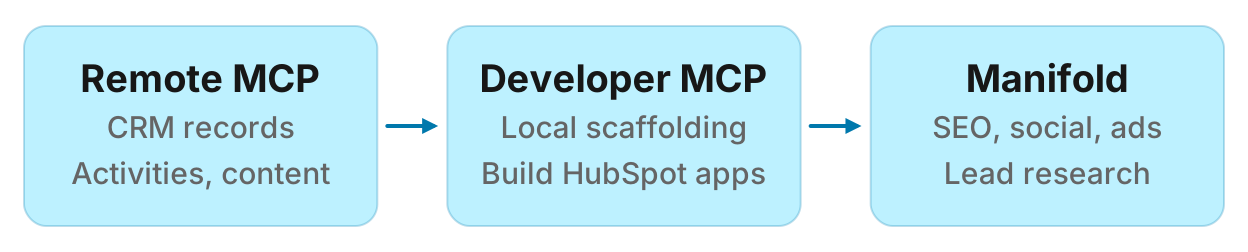
HubSpot MCP works on your CRM. For prospecting outside the CRM (company search, people search, verified work emails), you need a complementary lead research server. For SEO, social and ad data, you need a marketing research server. Here is how they compare:
| Remote HubSpot MCP | Developer MCP | Manifold (research) | |
|---|---|---|---|
| Where it runs | Hosted at https://mcp.hubspot.com | Local CLI on your machine | Hosted at manifoldmcp.com |
| Authentication | OAuth with PKCE | Local CLI login | OAuth 2.1 or API key |
| Setup | Admin creates connector; users connect through it | Install CLI, then hs mcp setup | Sign in once |
| What it sees | Your HubSpot CRM records, activities, marketing content | Project scaffolding, CMS assets, app config | SEO, Search Console, AI visibility, social, Reddit, ads, leads |
| Can it write to HubSpot? | Yes, with confirmation before each write | No, it manages local dev projects | No, it does not connect to HubSpot |
| Best for | Day-to-day CRM work, pipeline reviews, logging activities | Building HubSpot apps and CMS templates | Company search, people search, verified work emails, SEO research, social listening, ad libraries |
| Cost | Included with HubSpot subscription | Included with HubSpot developer account | 250 free credits, then Pro from $20/mo |
When you need something else
HubSpot MCP works on the data already in your HubSpot account. If you need to find new leads, verify work emails, or research prospects before they enter the CRM, you need a lead generation MCP server. For a full comparison of Clay, Manifold, FullEnrich and others, see the best lead generation MCP servers. For a step-by-step Clay setup, see the Clay MCP guide.
HubSpot MCP also does not cover SEO, Search Console, AI visibility, social listening, Reddit, or ad libraries. For those, add a marketing research server. Manifold hosts research across SEO, Search Console, Bing, AI answers, social platforms, Reddit, YouTube, ad libraries and lead research, with no API keys of your own. See the leads tools documentation for Manifold's company search, people search and email verification. For a full marketing server comparison, see the best MCP servers for marketing.
Run this in your agent
Connect Manifold to Claude, ChatGPT or Cursor, then paste this prompt.
Show me all open deals in the 'Proposal Sent' stage. Include company name, amount, and close date. Sort by close date ascending.